

Workspace Trust in the Theia IDE
When you open a folder in the Theia IDE, you give it access to its contents. Many normal IDE features — running tasks, starting debug sessions, loading extensions, executing AI tool calls — can ultimately run code from that folder on your machine. If you do not yet know whether you trust the code, you should not let those features run automatically.
Workspace Trust lets you tell the Theia IDE up-front whether you trust the authors of a folder. Until you grant trust, the IDE runs in Restricted Mode and disables features that could execute code or read sensitive content from the workspace. You can browse files and read code as much as you want; only the parts that could run something on your behalf are held back.
This page explains how Workspace Trust works in the Theia IDE, how to grant or revoke trust, and which features are affected in Restricted Mode. The implementation follows the VS Code Workspace Trust model where it makes sense, with some Theia-specific differences highlighted below.
Table of Contents
- Trusting a Folder
- Restricted Mode and the Status Bar
- Managing Workspace Trust
- What is Restricted in Restricted Mode
- Multi-Folder and Saved Workspaces
- Settings
- Disabling Workspace Trust
- Current Limitations
Trusting a Folder
The first time you open a folder that is not on your list of trusted folders, the Theia IDE shows a trust dialog asking:
Do you trust the authors of the files in this folder?
The dialog summarizes the trade-off: if you trust the authors, code in the folder may be executed; if you don't, some features will be disabled. The folder paths covered by the decision are listed so you can confirm what you are granting trust to.
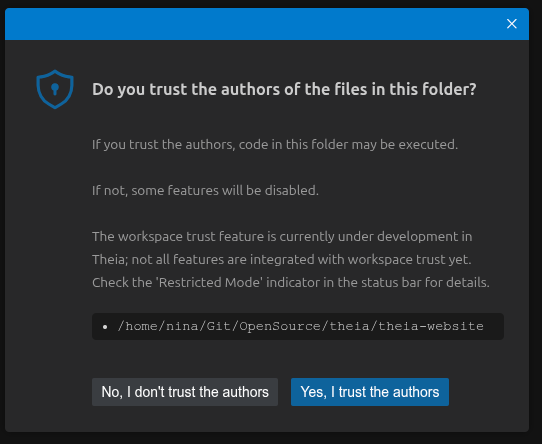
The dialog lays out what trusting or not trusting the folder means in concrete terms (tasks, debugging, extensions, AI features) and links to this page via a Learn more link for the full list of restrictions.
You have two choices:
- Yes, I trust the authors — the folder is added to your list of trusted folders. All features are enabled and the decision is remembered for future sessions.
- No, I don't trust the authors — the folder stays untrusted. The IDE enters Restricted Mode for this session. Closing the dialog (Escape or the × button) is equivalent to "No, I don't trust the authors".
You can change your mind at any time later via the Manage Workspace Trust command.
Restricted Mode and the Status Bar
Whenever the current workspace is not trusted, a Restricted Mode indicator appears on the left side of the status bar:
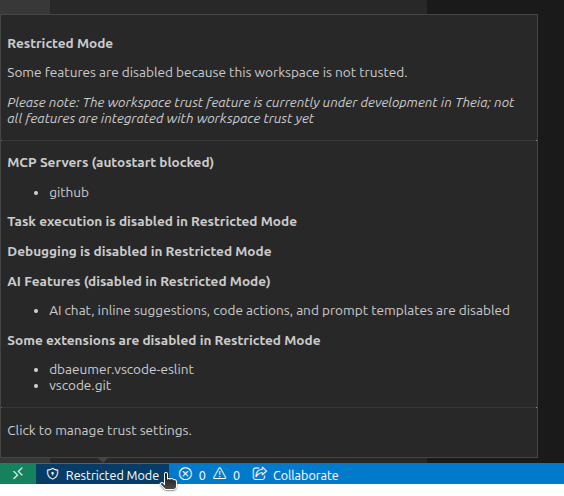
- The item uses the prominent status bar styling so it stays visible.
- Hovering it opens a tooltip that explains why some features are disabled and lists the active restrictions (for example, which extensions were skipped or that AI features are off). Different parts of the IDE plug into this tooltip, so it reflects what is actually being held back in your current setup. Links inside the tooltip (for example to this documentation page or to the Manage Workspace Trust command) are clickable.
- Clicking the item opens the Manage Workspace Trust quick pick (see below), so you can review and change the decision in one click.
When the workspace is trusted, the indicator is hidden. There is no separate "Workspace Trust" page in Theia today — the status bar item, its tooltip, and the management command are the central entry points.
Managing Workspace Trust
To review or change your decision later, use the Manage Workspace Trust command. You can launch it from:
- The Restricted Mode status bar item (when the workspace is untrusted).
- The command palette (
Ctrl+Shift+P/Cmd+Shift+P) — search for Manage Workspace Trust.
The command opens a quick pick where you can switch between Trust and Don't Trust. Granting trust adds the workspace's folders to the trusted folders list. Revoking trust removes the workspace's folders from that list and re-enters Restricted Mode.
Some changes (for example loading extensions that were previously skipped) require a window reload to take effect. Theia detects this and asks for confirmation before reloading. Decisions that don't need a reload (for example, an empty window where no extensions are blocked) take effect immediately.
What is Restricted in Restricted Mode
In Restricted Mode the Theia IDE deliberately turns off features that could execute code or read sensitive content from the workspace. Features that don't expose that risk — reading files, syntax highlighting, search, source control browsing — keep working as usual.
Tasks
Tasks defined in workspace configuration files (such as .theia/tasks.json) cannot be executed in an untrusted workspace, since they typically run shell commands. The task entry in the status bar tooltip lets you see at a glance that task execution is held back.
Debugging
Debug sessions cannot be started in an untrusted workspace. Debug configurations can launch arbitrary executables, run pre-launch tasks, and pass environment variables — all of which require trust. Trust the workspace to enable debugging.
Extensions and Plugins
Theia honors the capabilities.untrustedWorkspaces field that VS Code extensions can declare in their manifest:
- Extensions that declare
"untrustedWorkspaces": { "supported": false }are skipped while the workspace is untrusted. Their commands, views, and contributions are not loaded. - Extensions that don't declare anything are loaded today, but you should treat unknown extensions with the same caution as unknown workspaces.
- The Restricted Mode tooltip lists which extensions were skipped, so you can decide whether you want to grant trust to enable them.
When you change trust, the window reloads so the extension host can pick up the new state.
MCP Servers
MCP servers are configured in .theia/settings.json and can run arbitrary commands. To prevent untrusted workspaces from silently starting servers on disk, MCP servers configured with autostart: true are not started automatically when the workspace is untrusted. Once you grant trust, autostart works normally on the next session.
You can still inspect the configuration in the AI Configuration view; only the implicit start-up is held back.
AI Features
All AI features in the Theia IDE are gated by workspace trust. In Restricted Mode:
- The AI views and menus stay visible, but their functionality is disabled. The AI chat input shows a dedicated AI Features are Restricted message with a Manage Workspace Trust button that takes you straight to the trust dialog.
- Inline AI code completion, the Ask AI code action, and other AI commands are inactive.
- Workspace prompt templates (any
.prompttemplatefiles under your configured workspace template directories) are not loaded, so an untrusted workspace cannot inject prompt fragments into agent system messages. - Workspace- and folder-scoped values of
ai-features.*preferences are ignored altogether. This covers tool confirmation overrides (ai-features.chat.toolConfirmation), language model aliases (ai-features.modelSettings.languageModelAliases), agent settings (ai-features.agentSettings), the directories AI tools may read outside the workspace (ai-features.workspaceFunctions.allowedExternalPaths), and the allow- and deny-lists of the shell execution tool. The effective values fall back to your user or default settings, so an untrusted workspace cannot lower these guardrails. While the trust state is still being determined, the restricted values are used. - External images embedded in AI chat markdown (e.g. images returned by an LLM as
<img src="https://...">) are replaced with a[External image blocked]placeholder. Images you attach yourself or that come from tool calls (data:URIs) are always allowed.
Granting trust re-enables everything immediately, without a reload. Revoking trust later disables the AI features again the same way.
Multi-Folder and Saved Workspaces
For a multi-root workspace, all folders in the workspace must be on the trusted folders list for the workspace to count as trusted. As soon as one folder is untrusted, the whole workspace is in Restricted Mode.
For saved workspaces (.theia-workspace files), the workspace file itself is also trust-checked, because it can contain task definitions and folder-scoped settings. When you trust a saved workspace, the IDE adds the individual folder URIs (not the .theia-workspace file URI) to the trusted folders list.
For empty windows (no folder open), trust is controlled by the security.workspace.trust.emptyWindow setting (see Settings).
Settings
Workspace Trust exposes a small set of preferences. They live under security.workspace.trust.* and can be set in your user settings.
| Setting | Default | Purpose |
|---|---|---|
security.workspace.trust.enabled |
true |
Master switch for the feature. When false, every workspace is unconditionally trusted and Restricted Mode is never entered. |
security.workspace.trust.startupPrompt |
once |
When to show the trust dialog on opening an untrusted folder. always shows it every time, once shows it on the first open and remembers the decision, never skips it (untrusted by default). |
security.workspace.trust.emptyWindow |
true |
Whether an empty window (no folder opened) is trusted by default. |
security.workspace.trust.trustedFolders |
[] |
List of folder URIs that are trusted. Folders are matched by exact URI or by being a parent of an opened folder. Edited via the Manage Workspace Trust command in normal use. |
Changing security.workspace.trust.enabled or security.workspace.trust.trustedFolders may require a window reload to apply (for example, to (re)load extensions that were skipped). The IDE prompts you when a reload is needed.
Disabling Workspace Trust
Disabling Workspace Trust grants every workspace full access without asking. This is not recommended. Only consider disabling it if you fully control every folder you ever open in the IDE and the trade-off of a less interruptive workflow outweighs the security benefit for your use case.
To disable, set:
{
    "security.workspace.trust.enabled": false
}
You can re-enable the feature at any time by removing the setting or switching it back to true. Reloading the window applies the change.
Current Limitations
Workspace Trust is still maturing in the Theia IDE. The status bar tooltip explicitly notes this, and the most relevant gaps to be aware of today are:
- The
untrustedWorkspaces.supported: limitedcapability declared by some VS Code extensions is currently treated the same astrue(the extension loads). Fully restricted-mode-aware behavior forlimitedextensions is not yet implemented. - Theia does not have a separate Workspace Trust editor page like VS Code does. The status bar item, its tooltip, and the Manage Workspace Trust command are the central touchpoints.
- A few subsystems may still need additional integration. The active list of restrictions you see in the status bar tooltip reflects the contributions registered in your build; other parts of the IDE may continue to work as usual even when the workspace is untrusted.
If you spot something that should be restricted in an untrusted workspace but currently isn't, please file an issue referencing the Workspace Trust umbrella issue.
