

Using the "Theia IDE" as an End User
The Theia IDE is a modern and open IDE for cloud and desktop. The Theia IDE is based on the Theia platform.
- Learn more about the Theia IDE
- Download the Theia IDE
- Try the Theia IDE online
- Run the Theia IDE with Docker
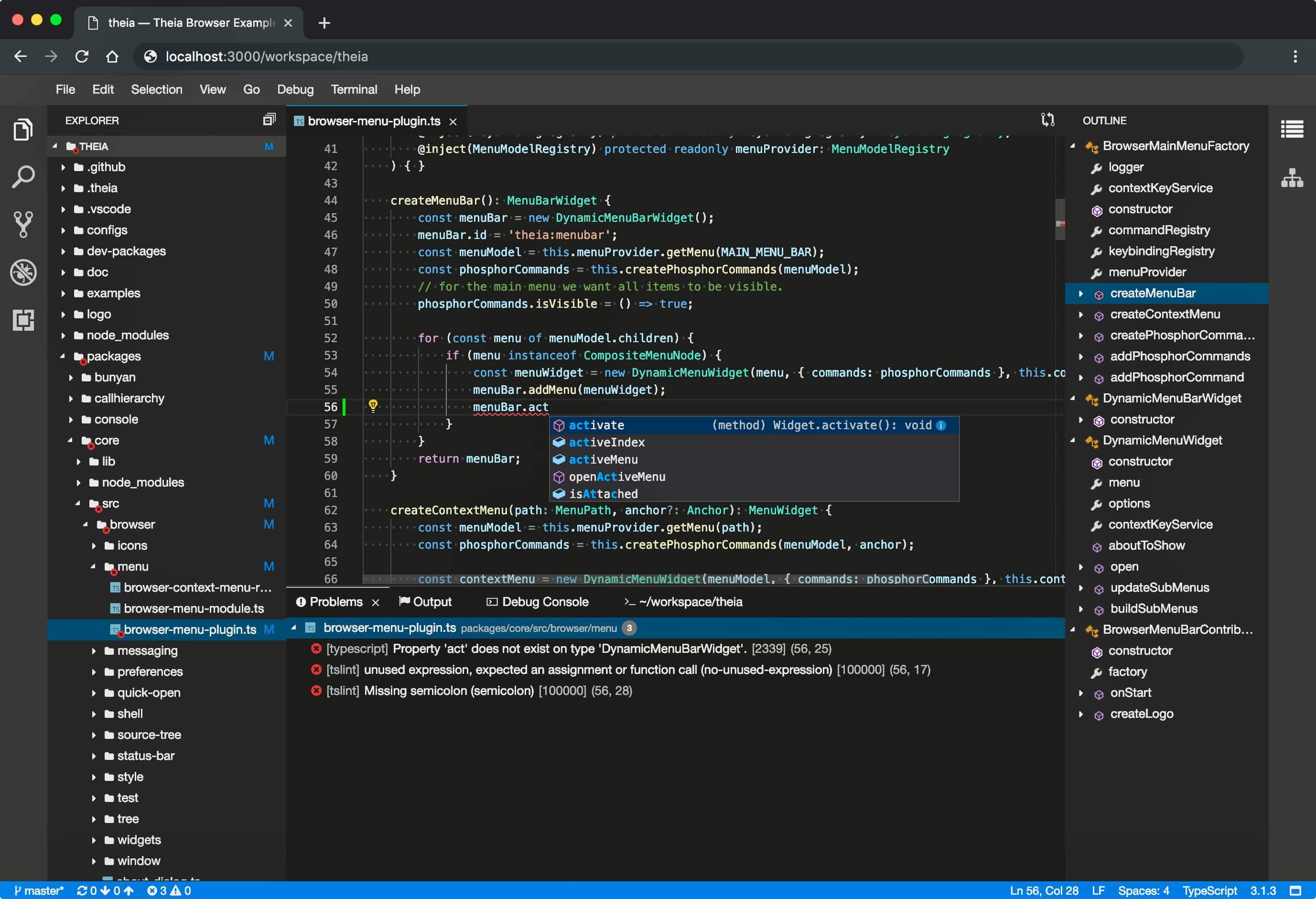
This section is about using the Theia IDE from an end user point of view. Please note that the Theia IDE is based on the Theia Platform, a technology to build tools and IDEs. As an end user, you are not using “Theia”, but always a product based on Theia, in this case the Theia IDE. If you are using another product based on Theia, please consider the specific end user documentation of the product you are using over this section.
Theia IDE's features and usability concept are heavily influenced by VS Code. Therefore, for many use cases, we refer to the VS Code documentation. We still provide some selected documentation about use cases which are differing or not supported in VS Code:
Please note that you can also use the Theia IDE as a basis to create your own custom product.
Selected Workbench Features
The following sections describe selected workbench features of the Theia IDE that work differently than in VS Code or are configured with Theia-specific preferences. Preferences mentioned here can be changed in the Settings editor or directly in your settings.json file.
Hiding Side Bar Items
Items in the left and right side bar can be hidden without closing their views. Right-click an icon in the side bar and choose Hide, or right-click an empty area of the side bar to show or hide each item via a checkbox. The last visible item of a side bar cannot be hidden.
The view of a hidden item remains fully accessible. When you open it, e.g. via a keybinding, a command or the View menu, its icon is shown for as long as the view is the current one in the side bar and disappears again once you switch to another view or collapse the side bar. While the icon is shown, choose Keep from its context menu to show the item permanently again. Hidden items are remembered locally in the browser or desktop application and apply to all workspaces. To show all items again, run View: Reset Hidden Side Bar Items or View: Reset Workbench Layout.
Secondary Windows
Editors and many views can be moved out of the main window into secondary windows, e.g. to place them on another monitor. Use Move View to Secondary Window from the toolbar or the context menu of a tab, or drag a tab outside of all application windows to open it in a new secondary window at the drop position. Tabs can also be dragged between the main window and secondary windows as well as between secondary windows. To move a view back, use the Move View to Main Window button in its toolbar or the entry in the context menu of its tab, while Move All Views to Main Window moves all views back at once. All of these commands are also available in the command palette.
While you work in a secondary window, the command palette, quick inputs and dialogs open in that window, and editors you open from there are opened in the same window. If the secondary window should stay above all other windows, enable window.secondaryWindowAlwaysOnTop.
The preference window.secondaryWindowCloseBehavior controls what happens to the views of a secondary window when you close it. With the default close, the views are closed, except for those that would lose state otherwise: editors with unsaved changes, if auto save is off, and terminals, depending on terminal.integrated.confirmOnExit, are moved back to the main window instead. With moveToMainWindow, all views are moved back to the main window.
Secondary windows are stored with the workbench layout and are reopened with their views, position and size on the next start. If you disable window.restoreSecondaryWindows, their views are restored in the main window instead. The same happens in the browser if it blocks the popups that are opened at startup.
